Pokebonk Controls: Keyboard, Mouse, Touch and Key Bindings
Find Pokebonk's default keys, touch controls, aiming modes and rebinding steps, checked against the v0.8.55 client with device-test limits.
FAQ
What are the basic Pokebonk keyboard controls?
How do I change keys in Pokebonk?
What does Q do in Pokebonk?
How do I enable Pokebonk touch controls?
Does P pause a multiplayer Pokebonk run for everyone?
Which controls should I learn first?
Start with move → camera → jump → interact → Ultimate. Open the official game through our play page , then use the table below beside the game. For the full first-run route, return to the Pokebonk beginner guide .
What are the keyboard and mouse defaults?
Movement and combat
| Input | Action | Useful detail |
|---|---|---|
| W / A / S / D | Move forward / left / back / right | Arrow keys also move, including after rebinding. |
| Mouse movement | Turn the camera | Click into the game if camera capture or keyboard focus has been lost. |
| Space | Jump | Hold to glide if the Pokémon can fly. |
| Left Shift | Slide | The client labels the airborne action as a dive. |
| E | Interact | Follow the nearby prompt; interaction depends on what is in range. |
| R | Use Ultimate | Requires a ready Ultimate. |
| Right-click | Toggle target lock | Separate from switching the aiming mode. |
| Q | Switch Automatic / Manual aiming | Manual aims with the camera. |
| Mouse wheel | Zoom the camera | Camera distance is also available in Settings → Controls. |
Normal move attacks fire through the game’s attack system; the default action list does not define a separate basic-attack key. Read your starter’s kit before choosing upgrades.
Navigation and automation
| Input | Action | Useful detail |
|---|---|---|
| P | Pause / resume interface | Prefer P in fullscreen if Esc exits fullscreen in your browser. |
| Esc | Pause / back / resume, depending on the open screen | Browser fullscreen and pointer capture can also consume Esc. |
| M | Open the big map | Press again to return when the map is open. |
| Hold Tab during play | Peek at the map | Tab has other uses in menus; this row describes active play. |
| T | Toggle auto-run | Moves forward relative to the camera; backward movement cancels it. |
| Y | Toggle auto Ultimate | The client describes automatic use when charged and enemies are nearby. |
| G during co-op | Place a co-op mark | Contextual: it also dismisses a downed companion in the relevant state. |
Level-up choices
| Default key | Action | Availability |
|---|---|---|
| F | Refresh / reroll offers | Only when the level-up interface offers an available use. |
| X | Skip upgrade | Only when available in that interface. |
| Z | Banish | Only when available; read the confirmation before accepting. |
| 1–4 / Enter | Menu choices / confirmation | Reserved menu inputs; the number of visible offers can vary. |
These keys do not unlock their actions or grant extra uses. Compare the visible choices in the level-up guide ; the Lab FAQ explains the fourth move slot versus a fourth offer.
How do I change bindings or aiming?
- Open Settings → Keys and select the action to change.
- Press the replacement key, middle/right mouse button or a side mouse button. Esc cancels capture. The primary mouse button is not offered by this capture handler.
- Check the displayed assignment. Binding an already-used key swaps actions within the same action group; gameplay and level-up shortcuts are handled separately.
- Use the section’s Reset control to restore its defaults if needed. Esc, Enter, Tab and number keys 1–4 are reserved rather than freely assignable.
Use Settings → Controls for aiming and camera options, rather than key assignments. Automatic aiming selects the closest enemy; Manual uses the camera direction. Q toggles between them during play with default bindings.
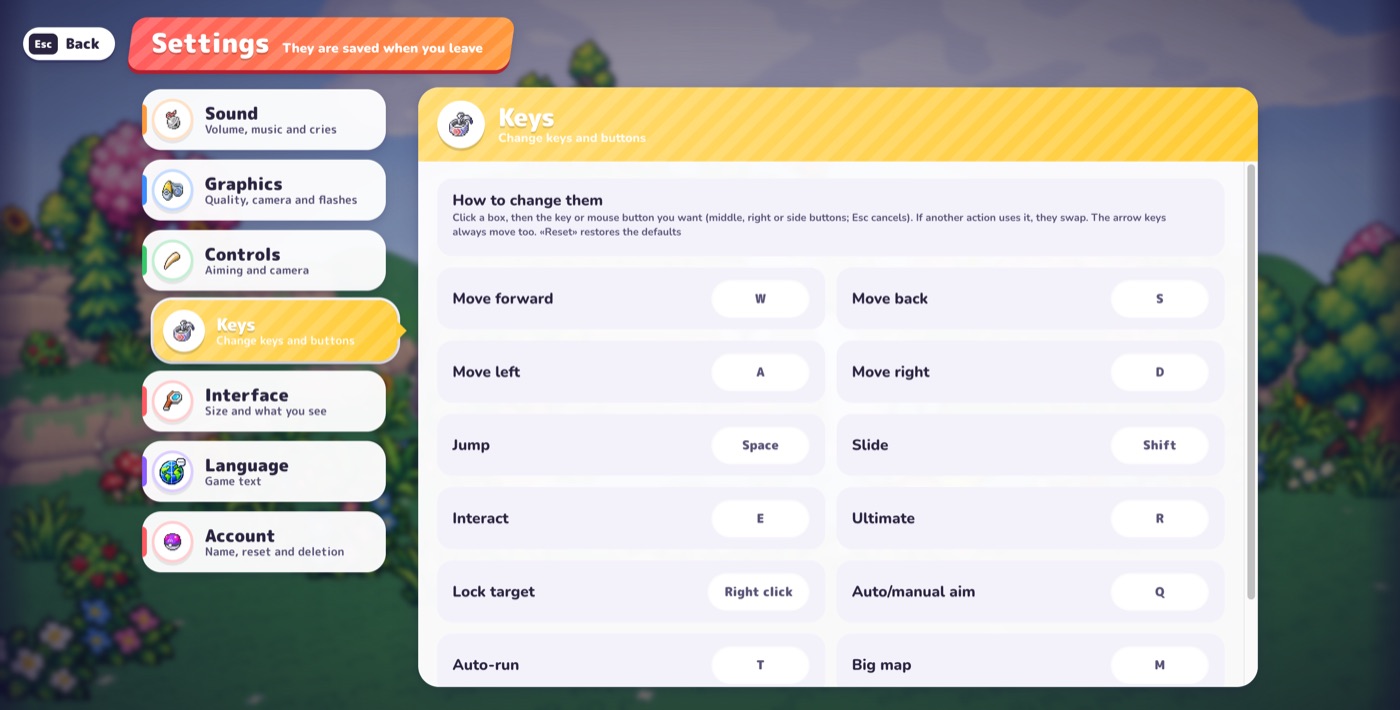
Existing Beta v0.7.2 screenshot, retained as a navigation illustration. It is not a v0.8.55 capture and does not show the entire current action list; use the checked tables above for this reference’s defaults.
How do touch controls work?
In Settings → Controls → Touch controls, the client offers Automatic, Touch, and Keyboard and mouse. If automatic detection picks the wrong interface, choose the appropriate option explicitly.
| Touch input | Client action |
|---|---|
| Left joystick | Move |
| Drag outside the joystick/buttons | Turn the camera |
| Pinch with two fingers | Zoom |
| Right-side action buttons | Jump, slide, Ultimate, target lock and interact |
| Upper controls | Pause and switch aiming mode |
The same settings section includes a fixed joystick and touch-button size options when touch mode is active. These are implemented controls, not a guarantee of frame rate, browser compatibility or comfort on every device. If the game will not accept input, use the controls and focus troubleshooting steps .
Can I use a controller?
The v0.8.55 client includes browser gamepad detection, movement/camera sticks and button assignment controls. With a pad detected, Settings → Keys exposes gamepad bindings. Button labels and layouts can vary, so check that screen instead of assuming a universal Xbox or PlayStation map. No controller hardware was tested for this article.
What was verified, and where?
Checked 2026-10-25 against these official public resources:
- Official version file : v0.8.55, build mvob1c8t at the time of review.
- Game client : default action map, input handlers, key capture, touch interface, gamepad handling and co-op pause update conditions.
- English interface strings : action names, aiming and touch-help descriptions.
The tables describe inspected client behavior. We did not change a live profile, complete a run, test touch hardware, pair a controller or verify multiplayer timing in-game. The older screenshot and the beginner guide’s v0.7.3 observations remain historical evidence. Asset URLs may change with a patch; recheck the live version before treating this snapshot as current.
Related Articles
guides
Pokebonk Classic vs Survival: Modes, Unlocks and Milestones
Compare Pokebonk Classic and Survival: route goals, difficulty, map access, pacts and scheduled bosses, checked against the v0.8.55 client.
guides
Pokebonk Move Learning: Sources, Slots and Matching Upgrades
Learn where Pokebonk moves come from, why an attack may not appear, how slots and upgrade tags work, and how status effects lead into reactions.
guides
PokéBonk Difficulty: What Should a Beginner Choose?
A simple first-run difficulty recommendation for PokéBonk, with version-aware notes about Classic and Survival.
Was this helpful?
Thanks for the feedback!